Real world example: Within your organization you have people joining, and leaving, and sometimes people who left will join again later.
Let’s say we have John, John left the company a year ago and is now joining again. John’s username was john@company.com and now that he joins again his username is john@company.com again. When John was working before he had access to SharePoint / Teams sites and also colleagues of John shared some files and folders with him.
Now that he is back colleagues of John are sharing the same (or other) folders again with John, John accept’s the sharing invitation but cannot get in. He then ask for permission again, the sharer approves it, but still nothing happens.
Any of the following error messages will be shown:
- Access Denied
- You need permission to access this site
- User not found in the directory
- This link is not available to you.
- Sorry, you are currently signed in as but that account is not on the list of people this is secured to. To try a different email please sign out and open the link again.
The issue that occurs is called a ‘Site user ID mismatch’. To resolve this issue you can use the ‘Diag: Check SharePoint User Access’ that is available in the Microsoft Admin center: https://aka.ms/PillarCheckUserAccess
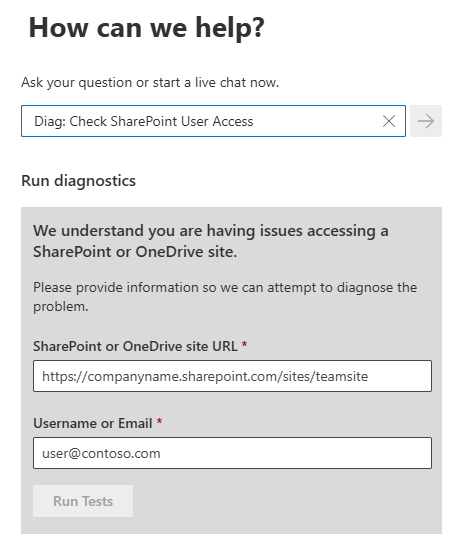
The following will be shown, where in the ‘SharePoint or OneDrive site URL’ you will need to enter the site URL of the SharePoint site or OneDrive from the user. In the ‘Username or Email‘ field you will need to enter the username, in this example john@company.com.
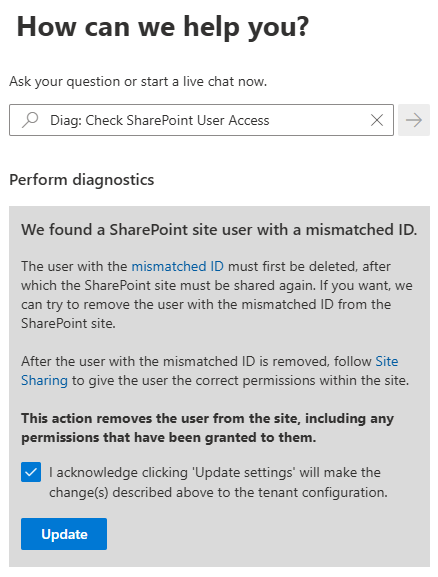
After some time (seconds / minutes). You will see a similar screen as shown below. When clicking ‘I acknowledge’ and ‘Update’ the Diag: will fix the mismatched user and the issues is resolved.

Leave a Reply